Charles TechCharles Tech
  • Tests High-Tech
    • Smartphones
      • iPhone
      • Asus
      • Huawei
      • Poco
      • Samsung
      • Xiaomi
    • Ordinateurs
      • PC fixe / gamer
      • PC portables
    • Composants PC
      • Cartes Graphiques
      • Processeurs
      • SSD
    • Eléctromenager
      • Aspirateurs robots
    • Périphériques
      • Claviers
      • Souris
  • Actu Tech
  • Bons plans
  • Dossiers
  • Guides d’achat
  • Tutos
  • English
    • Deutsch
    • Español
    • Italiano
    • Français
    • 日本語
    • Polski
Vous lisez How do you back up and restore your data on Windows 11?
Font ResizerAa
Charles TechCharles Tech
Font ResizerAa
Rechercher ...
  • Tests High-Tech
    • Smartphones
    • Ordinateurs
    • Composants PC
    • Eléctromenager
    • Périphériques
  • Actu Tech
  • Bons plans
  • Dossiers
  • Guides d’achat
  • Tutos
  • English
    • Deutsch
    • Español
    • Italiano
    • Français
    • 日本語
    • Polski
Suivez-nous
Charles Tech > All our High-Tech tips and tutorials > How do you back up and restore your data on Windows 11?

How do you back up and restore your data on Windows 11?

Charles Gouin-Peyrot
Published: 28/04/2024
Last updated: 28/04/2024
Ce site utilise des liens affiliés qui participent aux revenus du site. En les utilisant, ça ne vous coûte pas plus cher, mais un pourcentage nous est reversé pour continuer à vous informer et à proposer des tests toujours plus complets.
Partager
Résumer avec :
ChatGPT ChatGPT
Grok Grok
Perplexity Perplexity
Claude Claude
Sommaire
  • The backup and restore tool in Windows 11
  • Backing up your data on Windows 11
  • Restoring your data on Windows 11

Here’s how to back up and restore your data on the Windows 11 operating system: there’s a tool called “Backup and Restore” directly accessible via your system.

The backup and restore tool in Windows 11

It’s crucial to implement backup measures to prevent data loss, whether due to hardware failure, accidental deletion or other unforeseen incidents. Windows 11’s built-in Backup & Restore function, inherited from Windows 7, enables users to easily create backup copies of their systems and files, encompassing personal data, settings, applications, as well as complete system images. These backups can be stored on external hard drives or network locations. Should the need arise, you can easily recover previously backed-up data, whether individual files or the entire system, considerably reducing the risk of data loss.

Backing up your data on Windows 11

To access the tool in question, you’ll need to carefully follow the next steps I’m about to give you. To begin with, all you need to do is enter “Windows+R”, then type “control” in the search panel
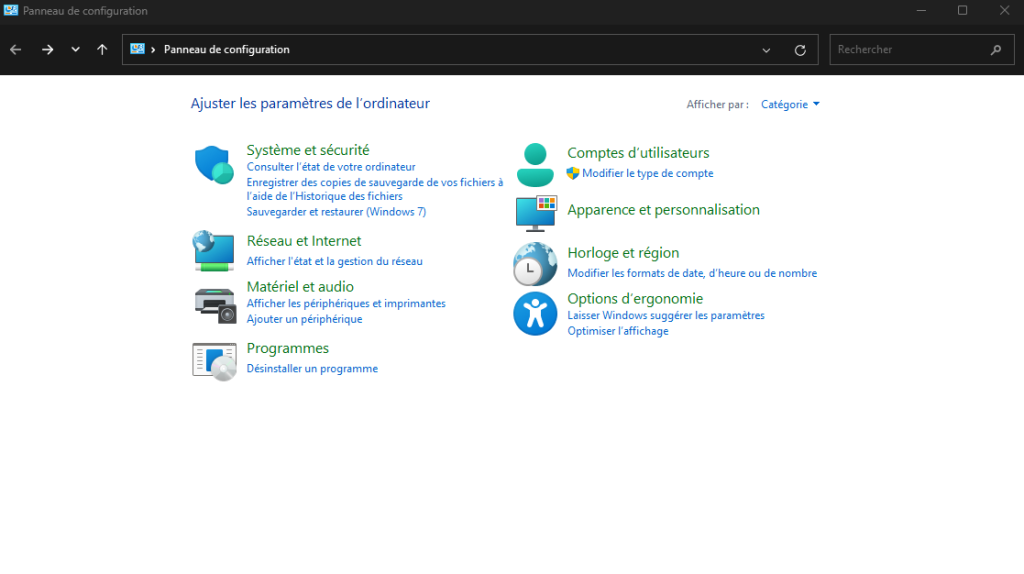
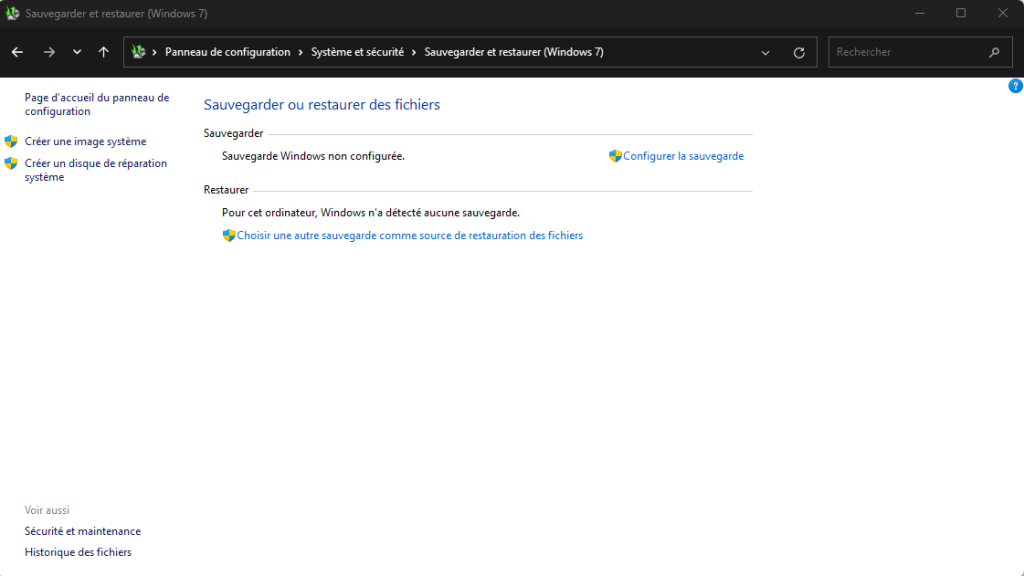
Panneau de configuration Windows
Click on “Backup and Restore (Windows 7)”
Once you’ve done this, the Windows control panel will open, and you’ll need to select “Backup and Restore” in the “System and Security” section. Once you’ve done this, click on “Configure backup”.
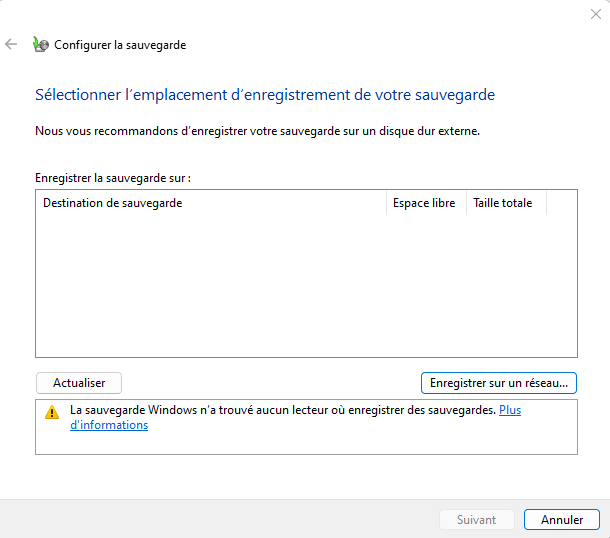
Configurer la sauvegarde
Configuring your data backup
After this step, your computer will ask you to select a storage space for your data backup. caption id=”attachment_114384″ align=”aligncenter” width=”610″]Configurer la sauvegarde Run your data backup to the desired location[/caption] Once you’ve made your selection, simply select “Save settings and run backup” to start the process. Your personal files are now safe and sound. Now it’s time to see how to restore the backup.

D'autres articles intéressants

How do I connect Bluetooth headphones to a Galaxy Watch?
How do I hide the taskbar in Windows 11?
Here’s how to free up iPhone storage space without deleting anything
How to get Amazon Prime at half price (under 26)
How to adjust the Nothing Ear volume (2)

Restoring your data on Windows 11

This part of the tutorial will help you recover some of your files or folders that you may have accidentally lost. But don’t give up hope, because it’s possible to recover them quite easily. To do so, you’ll first need to connect the storage device containing your backup files, and then re-enter the Windows Backup and Restore tool. Once you’ve done this, simply click on the “Restore Files” tab in the bottom right-hand corner of the page currently open on your screen. Once you’ve found the lost files or folders, simply restore them, and you’re done!

Partager cet article
Facebook Email Copy Link Imprimer
Laisser une note

Laisser une note Cancel reply

Your email address will not be published. Required fields are marked *

Sélectionnez une note

Notre partenaire

offre nordvpn

Réseaux sociaux

23KLike
38KSuivre
170Suivre
2.8KAbonnement
10.8KSuivre
1.1KSuivre
34Suivre

Vous aimerez aussi ...

How do I change the language on my iPhone?

28/04/2024

How to disable automatic updates on Windows 11

28/04/2024
instagram

How do I delete posts on Instagram?

28/04/2024

How do you connect your AirPods to your Windows 11 PC?

28/04/2024

A ne pas louper !

laifen wave acier
Prix sacrifié pour le Black Friday sur ces produits Laifen
Bons plans
laifen se lite
Black Friday : économisez 40% sur ces sèche-cheveux design de chez Laifen
Bons plans
laifen wave acier
Black Friday : ces brosses à dents connectées sont en promo exceptionnelle jusqu’à 40% de réduction dès aujourd’hui
Bons plans
  • Annoncer sur CharlesTech
  • Mentions légales
  • Contactez nous
  • À propos
  • Plan de site
© Charles Tech 2017 - 2025 - Toute reproduction (même partielle) interdite sous peine de poursuites.
Re !

Connectez-vous

Username or Email Address
Password

Vous avez perdu votre mot de passe ?