Charles TechCharles Tech
  • Tests High-Tech
    • Smartphones
      • iPhone
      • Asus
      • Huawei
      • Poco
      • Samsung
      • Xiaomi
    • Ordinateurs
      • PC fixe / gamer
      • PC portables
    • Composants PC
      • Cartes Graphiques
      • Processeurs
      • SSD
    • Eléctromenager
      • Aspirateurs robots
    • Périphériques
      • Claviers
      • Souris
  • Actu Tech
  • Bons plans
  • Dossiers
  • Guides d’achat
  • Tutos
  • English
    • Deutsch
    • Español
    • Italiano
    • Français
    • 日本語
    • Polski
Vous lisez How do I change the folder in which I save screenshots on a Mac?
Font ResizerAa
Charles TechCharles Tech
Font ResizerAa
Rechercher ...
  • Tests High-Tech
    • Smartphones
    • Ordinateurs
    • Composants PC
    • Eléctromenager
    • Périphériques
  • Actu Tech
  • Bons plans
  • Dossiers
  • Guides d’achat
  • Tutos
  • English
    • Deutsch
    • Español
    • Italiano
    • Français
    • 日本語
    • Polski
Suivez-nous
Charles Tech > All our High-Tech tips and tutorials > How do I change the folder in which I save screenshots on a Mac?

How do I change the folder in which I save screenshots on a Mac?

Charles Gouin-Peyrot
Published: 28/04/2024
Last updated: 28/04/2024
Ce site utilise des liens affiliés qui participent aux revenus du site. En les utilisant, ça ne vous coûte pas plus cher, mais un pourcentage nous est reversé pour continuer à vous informer et à proposer des tests toujours plus complets.
Partager
Résumer avec :
ChatGPT ChatGPT
Grok Grok
Perplexity Perplexity
Claude Claude
Sommaire
  • How do I take a screenshot on a Mac?
  • Change the folder in which you save screenshots.

This short tutorial will guide you step-by-step through changing the folder in which you save your screenshots on your Mac. It’s a very easy setting to change, and one that can save a lot of time.

How do I take a screenshot on a Mac?

Before changing the destination folder for your screenshots, it’s important to know the different ways of taking them. The method is the same on all Macs(Macbook Air, Pro, Mini, iMac…).

With keyboard shortcuts:

  • To capture the whole screen: Shift + Command + 3
  • To capture a part of the screen: Shift + Command + 4 and select the part of the screen you want to capture.
  • To capture a window or defined area: Shift + Command + 4 + Space.

With trackpad or mouse:

Open the “Screen Capture” application on the Launchpad or via Spotlight search (the F4 button or the magnifying glass at the top of the screen). Once you’re on the application bar, you can take a screenshot in any way you like. It’s also possible to take a screenshot using the Touch Bar on Macbook Pros.

D'autres articles intéressants

How to avoid freeways with iPhone Maps?
How to set up iPhone notifications?
How do I activate dark mode on a Mac?
How do I delete my Google Maps search history?
How do I download a Google Doc image?

Change the folder in which you save screenshots.

To change the destination folder for screenshots, you need to open the Screenshots application.
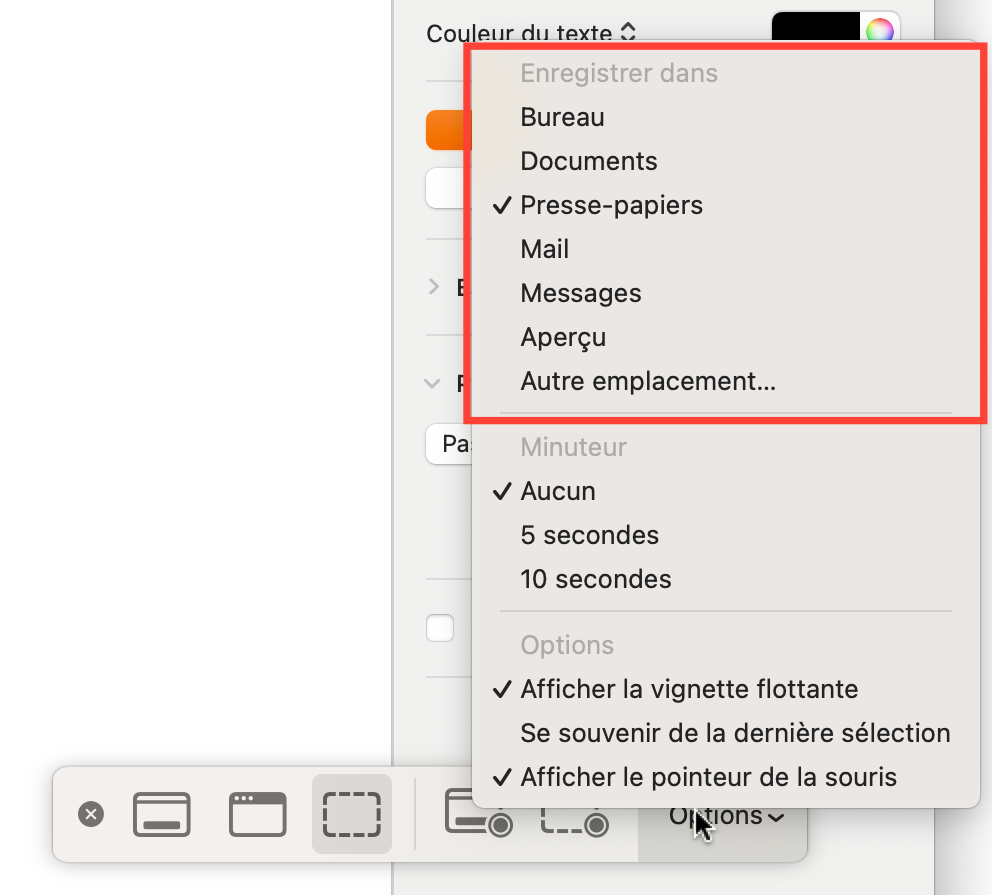
modifier dossier capture d'écran Mac
By clicking on “Options” you can change all your screenshot settings
Tip: By choosing the clipboard as your saving method, you can paste your captures anywhere on your Mac (by pressing Command + V) but also on all your Apple devices. Thanks to the universal clipboard, you’ll be able to paste your screenshot onto another Mac, an iPhone, an iPad, an Apple TV… Now you know everything you need to know to modify your screenshot settings and configure their destination folder on the Mac.

Partager cet article
Facebook Email Copy Link Imprimer
Laisser une note

Laisser une note Cancel reply

Your email address will not be published. Required fields are marked *

Sélectionnez une note

Notre partenaire

offre nordvpn

Réseaux sociaux

23KLike
38KSuivre
170Suivre
2.8KAbonnement
10.8KSuivre
1.1KSuivre
34Suivre

Vous aimerez aussi ...

How do I bookmark a site on Chrome?

28/04/2024

How do I use AirDrop on my iPhone?

28/04/2024

How do you use “OK Google” on your Android device?

28/04/2024

How to change Siri’s voice on your Apple devices?

28/04/2024

A ne pas louper !

laifen wave acier
Prix sacrifié pour le Black Friday sur ces produits Laifen
Bons plans
laifen se lite
Black Friday : économisez 40% sur ces sèche-cheveux design de chez Laifen
Bons plans
laifen wave acier
Black Friday : ces brosses à dents connectées sont en promo exceptionnelle jusqu’à 40% de réduction dès aujourd’hui
Bons plans
  • Annoncer sur CharlesTech
  • Mentions légales
  • Contactez nous
  • À propos
  • Plan de site
© Charles Tech 2017 - 2025 - Toute reproduction (même partielle) interdite sous peine de poursuites.
Re !

Connectez-vous

Username or Email Address
Password

Vous avez perdu votre mot de passe ?