Charles TechCharles Tech
  • Tests High-Tech
    • Smartphones
      • iPhone
      • Asus
      • Huawei
      • Poco
      • Samsung
      • Xiaomi
    • Ordinateurs
      • PC fixe / gamer
      • PC portables
    • Composants PC
      • Cartes Graphiques
      • Processeurs
      • SSD
    • Eléctromenager
      • Aspirateurs robots
    • Périphériques
      • Claviers
      • Souris
  • Actu Tech
  • Bons plans
  • Dossiers
  • Guides d’achat
  • Tutos
  • English
    • Deutsch
    • Español
    • Italiano
    • Français
    • 日本語
    • Polski
Vous lisez How to move a Steam game to another hard drive or SSD
Font ResizerAa
Charles TechCharles Tech
Font ResizerAa
Rechercher ...
  • Tests High-Tech
    • Smartphones
    • Ordinateurs
    • Composants PC
    • Eléctromenager
    • Périphériques
  • Actu Tech
  • Bons plans
  • Dossiers
  • Guides d’achat
  • Tutos
  • English
    • Deutsch
    • Español
    • Italiano
    • Français
    • 日本語
    • Polski
Suivez-nous
Charles Tech > All our High-Tech tips and tutorials > How to move a Steam game to another hard drive or SSD

How to move a Steam game to another hard drive or SSD

Charles Gouin-Peyrot
Published: 28/04/2024
Last updated: 28/04/2024
Ce site utilise des liens affiliés qui participent aux revenus du site. En les utilisant, ça ne vous coûte pas plus cher, mais un pourcentage nous est reversé pour continuer à vous informer et à proposer des tests toujours plus complets.
Partager
Résumer avec :
ChatGPT ChatGPT
Grok Grok
Perplexity Perplexity
Claude Claude
Sommaire
  • Using the Steam storage manager
  • Move the Steam folder directly

There may be several reasons why you want to move some of your Steam games to another hard disk or SSD. The first possibility could be that you no longer have enough storage.logo steamIn addition, moving them to another SSD can reduce the load times of your games, and brings a number of benefits, including improved performance, better energy savings for your PC or even greater durability. In this tutorial, you’ll be able to discover the two most effective and quickest ways in my opinion. Thanks to the explanations provided, your problems will be solved in just a few minutes.

Using the Steam storage manager

Two years ago, Steam introduced the Storage Manager to simplify game management by displaying the space each game occupies on your local disk. In order to do this without any hassle, I’d like to ask you to follow these steps in order:

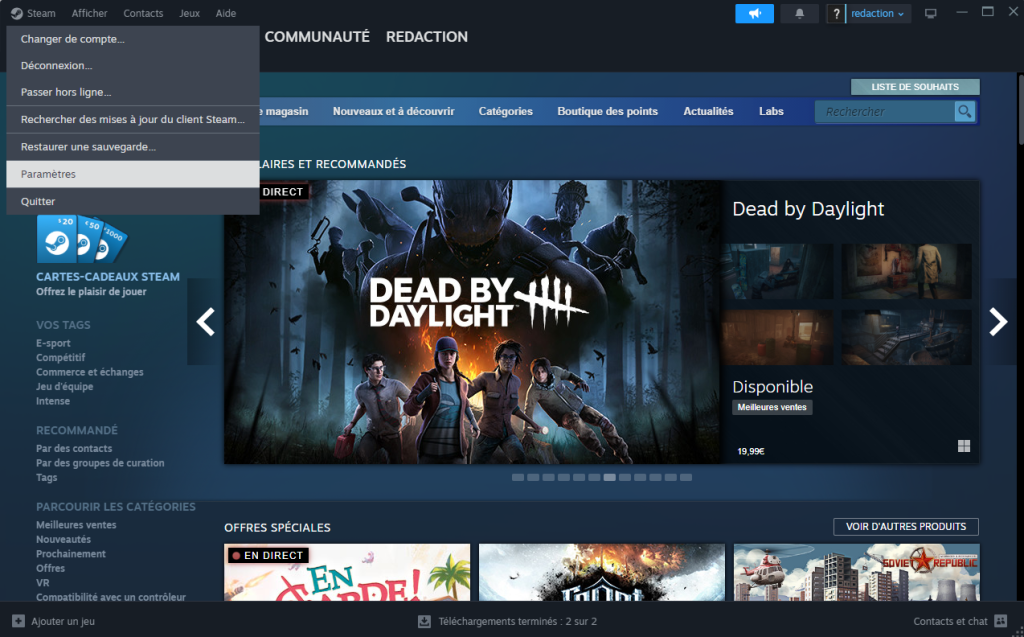
  • First, you’ll need to run Steam. Then click on the “Steam” tab in the top left-hand corner of your screen, and select the settings section.
Comment déplacer un jeu Steam vers un autre disque dur ou SSD ?

D'autres articles intéressants

How do I share a connection with an Android?
How to create an SEO strategy for more traffic
How do I delete applications on Android?
How do I reboot an iPhone 13 / 13 Mini / 13 Pro / 13 Pro Max?
How to bypass CAPTCHA on iPhone and iPad websites?
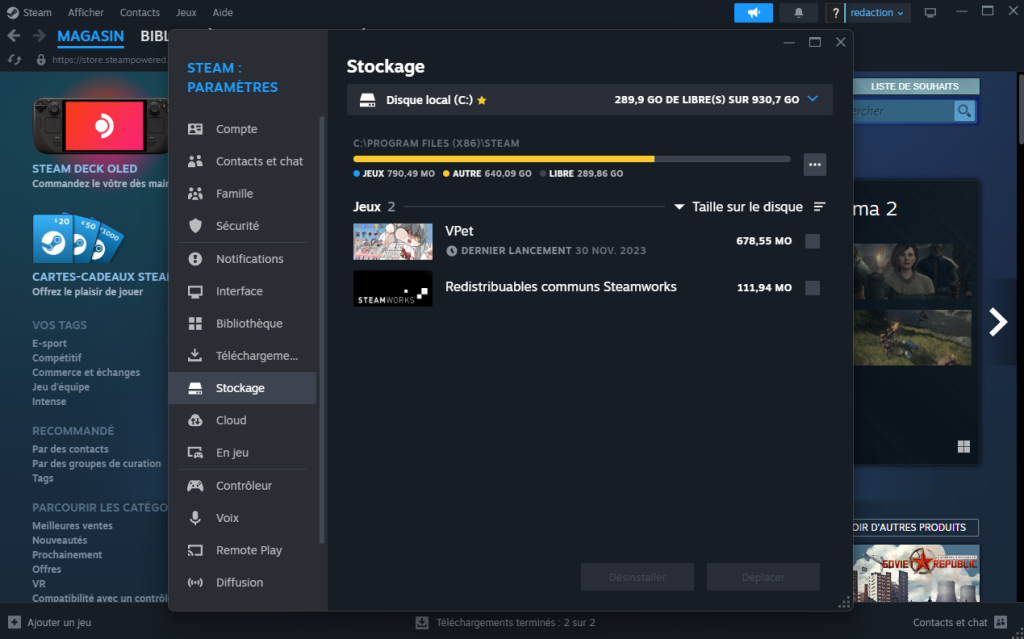
  • Select “Storage”, then click on the drop-down menu, where you’ll see your current hard disk.
Comment déplacer un jeu Steam vers un autre disque dur ou SSD ?

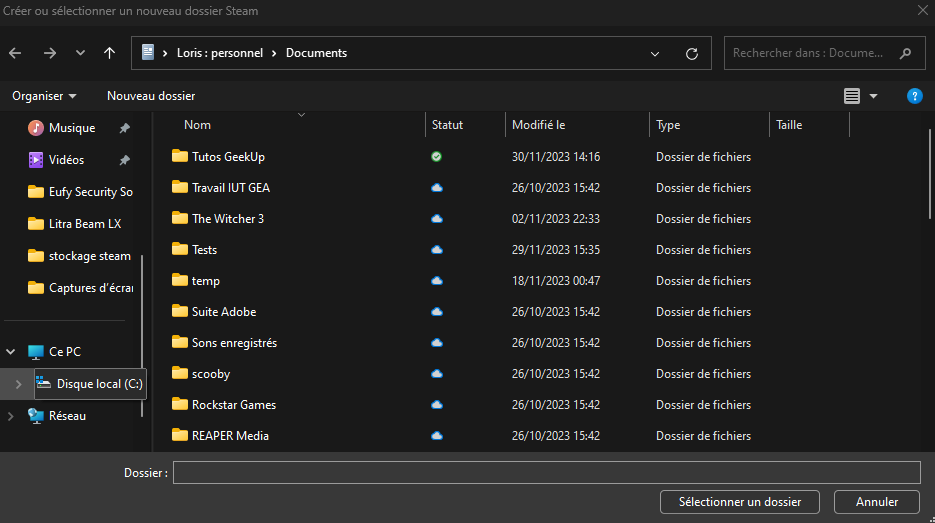
  • Select “Add a disk” to access your other storage spaces.
Comment déplacer un jeu Steam vers un autre disque dur ou SSD ?

  • Click on the space to which you wish to move your game, then click on “Add”.

Then simply click on the game you wish to move, and click on the “Move” box.

Move the Steam folder directly

The other easiest method I can give you is to move your entire Steam game folder to the desired SSD or hard disk. As always, of course, I strongly recommend following the next steps. This is to make it easier for you to understand.

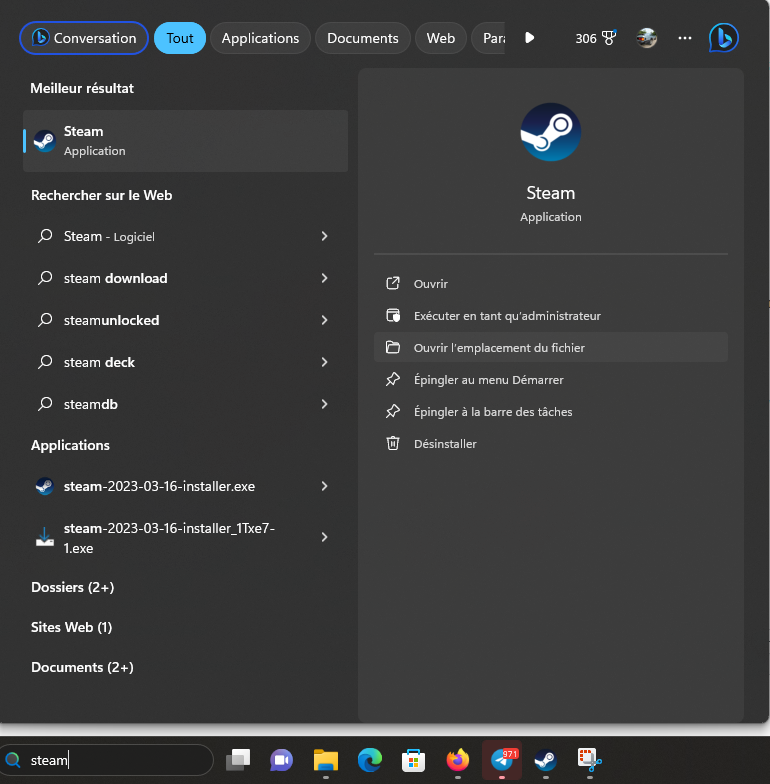
  • First of all, press “Windows+S” to open the search field. Type “Steam” and search for the software. Right-click on it, then select “Open file location”.
  • Then right-click to select the Steam folder you wish to move, and copy it.
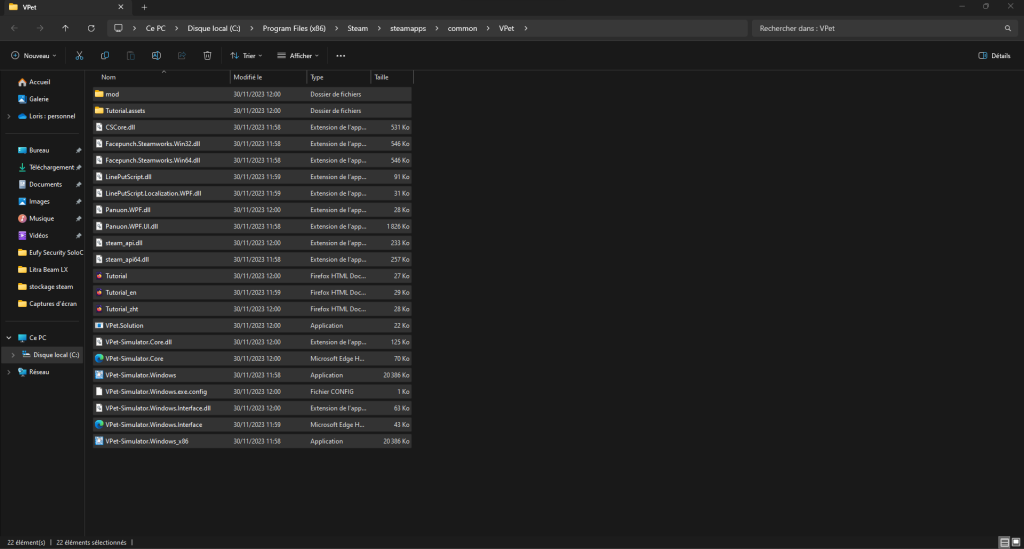
  • Go to the storage space where you’d like it to be, and paste it.
  • Finally, rename the old folder to keep it in the source directory, or delete it if you prefer. Then launch Steam from the new path and create a new shortcut.

You now have all the keys you need to move your games to other locations and free up some storage space on your local drive.

Partager cet article
Facebook Email Copy Link Imprimer
Laisser une note

Laisser une note Cancel reply

Your email address will not be published. Required fields are marked *

Sélectionnez une note

Notre partenaire

offre nordvpn

Réseaux sociaux

23KLike
38KSuivre
170Suivre
2.8KAbonnement
10.8KSuivre
1.1KSuivre
34Suivre

Vous aimerez aussi ...

smartphone reconditionné

How to reset an iPhone? Complete tutorial with and without PC

28/04/2024
drive

How do I activate dark mode on Google Drive?

28/04/2024
tuto comment changer de fond d'ecran sur android

How do I change the wallpaper on Android?

28/04/2024
telegram

How do I delete archived conversations on Telegram?

28/04/2024

A ne pas louper !

laifen wave acier
Prix sacrifié pour le Black Friday sur ces produits Laifen
Bons plans
laifen se lite
Black Friday : économisez 40% sur ces sèche-cheveux design de chez Laifen
Bons plans
laifen wave acier
Black Friday : ces brosses à dents connectées sont en promo exceptionnelle jusqu’à 40% de réduction dès aujourd’hui
Bons plans
  • Annoncer sur CharlesTech
  • Mentions légales
  • Contactez nous
  • À propos
  • Plan de site
© Charles Tech 2017 - 2025 - Toute reproduction (même partielle) interdite sous peine de poursuites.
Re !

Connectez-vous

Username or Email Address
Password

Vous avez perdu votre mot de passe ?