Charles TechCharles Tech
  • Tests High-Tech
    • Smartphones
      • iPhone
      • Asus
      • Huawei
      • Poco
      • Samsung
      • Xiaomi
    • Ordinateurs
      • PC fixe / gamer
      • PC portables
    • Composants PC
      • Cartes Graphiques
      • Processeurs
      • SSD
    • Eléctromenager
      • Aspirateurs robots
    • Périphériques
      • Claviers
      • Souris
  • Actu Tech
  • Bons plans
  • Dossiers
  • Guides d’achat
  • Tutos
  • English
    • Deutsch
    • Español
    • Italiano
    • Français
    • 日本語
    • Polski
Vous lisez How to connect your AirPods / Pro / Max to your iPhone
Font ResizerAa
Charles TechCharles Tech
Font ResizerAa
Rechercher ...
  • Tests High-Tech
    • Smartphones
    • Ordinateurs
    • Composants PC
    • Eléctromenager
    • Périphériques
  • Actu Tech
  • Bons plans
  • Dossiers
  • Guides d’achat
  • Tutos
  • English
    • Deutsch
    • Español
    • Italiano
    • Français
    • 日本語
    • Polski
Suivez-nous
Charles Tech > All our High-Tech tips and tutorials > How to connect your AirPods / Pro / Max to your iPhone

How to connect your AirPods / Pro / Max to your iPhone

Le Geek
Le Geek
Published: 28/04/2024
Last updated: 28/04/2024
Ce site utilise des liens affiliés qui participent aux revenus du site. En les utilisant, ça ne vous coûte pas plus cher, mais un pourcentage nous est reversé pour continuer à vous informer et à proposer des tests toujours plus complets.
Partager
Résumer avec :
ChatGPT ChatGPT
Grok Grok
Perplexity Perplexity
Claude Claude
Sommaire
  • How to connect AirPods and AirPods Pro to your iPhone
  • How to manually connect your AirPods and AirPods Pro to your iPhone
  • How to connect your AirPods Max to your iPhone

Having trouble connecting your AirPods, AirPods Pro and AirPods Max to your iPhone? Don’t panic, here are all the steps to connect your devices. Although these headphones are supposed to connect easily to your smartphone, it can happen that there are pairing problems.Here are some solutions for you, including a manual solution, to help you connect your accessories.

How to connect AirPods and AirPods Pro to your iPhone

AirPods can be easily paired with an iPhone, iPad or macOS in a few simple steps, provided Bluetooth is enabled of course. If you’ve just bought a new pair of AirPods or AirPods Pro, regardless of generation, here’s how to connect them to your iPhone:

  1. First, make sure you’re logged in to your iCloud account or Apple ID.
  2. Next, bring the earphones close to your smartphone and open the cover.
  3. A window should then appear on your iPhone screen with a “Connect” button. Simply click on it.
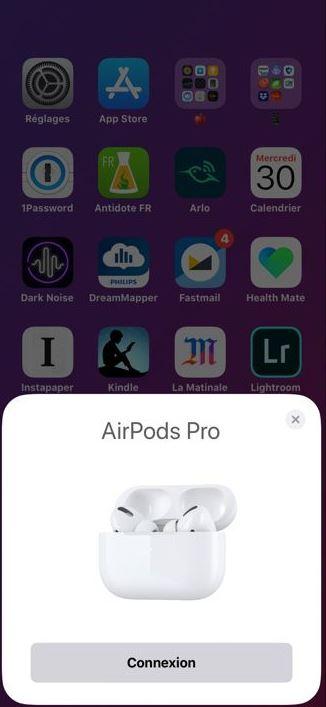
connexion airpods sur iphone

D'autres articles intéressants

How to add or delete users on Windows 11
How to install Gmail on a Huawei smartphone
How can I view an Instagram story anonymously?
How to activate or deactivate optimized iPhone recharging
How do I delete my Google Chrome history?

Once the connection is established, a “Done” button should appear. From now on, as soon as you take your earphones out of their case, an automatic connection will be established between the two devices. However, to benefit from this permanent connectivity, it’s important to keep Bluetooth activated.

How to manually connect your AirPods and AirPods Pro to your iPhone

If you’re having trouble connecting your AirPods to your iPhone using the previous method, we suggest this alternative method:

  1. Make sure the AirPods are in their case and that the case is charged.
  2. Press and hold the button on the back of the case until the indicator light starts flashing white.
  3. Wait until the connection window appears on your smartphone screen, then press “Connect”.
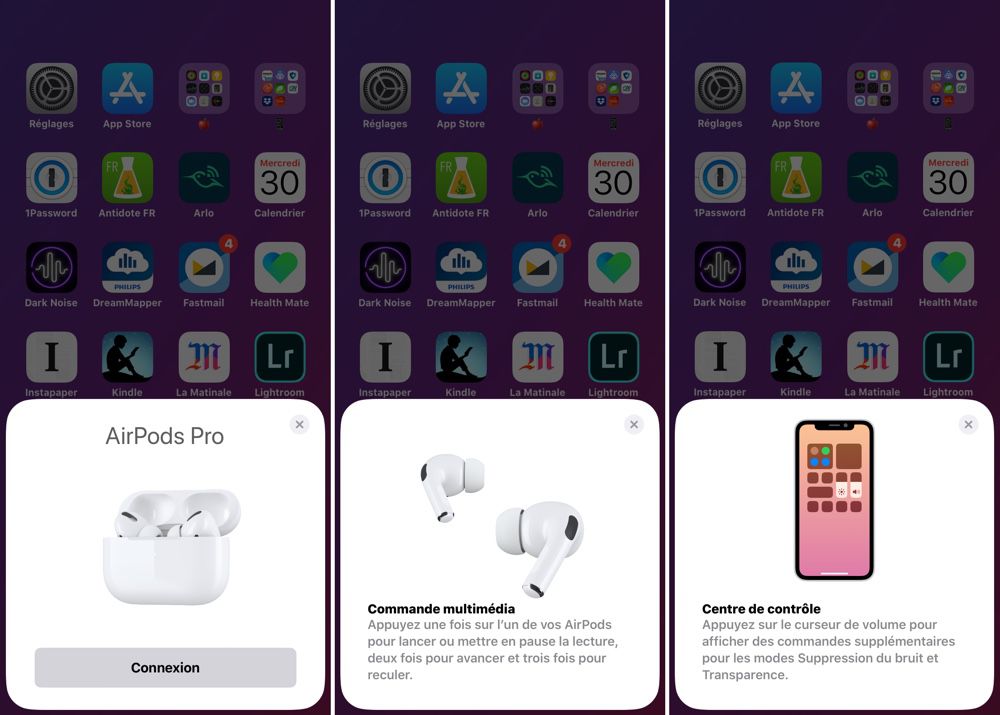
tutoriel connexion manuelle airpods

If the window doesn’t appear, access the Bluetooth settings in the Settings application. Search for your AirPods in the list of available devices and proceed with pairing. However, if you continue to experience problems, contact Apple technical support.

How to connect your AirPods Max to your iPhone

If you’ve just purchased AirPods Max, the brand’s top-of-the-range earphones, here’s what to do:

  1. Start by activating Bluetooth on your iPhone, by accessing the Bluetooth settings or using the Control Center.
  2. Take the AirPods Max out of their case and hold them next to your iPhone. After a minute or so, a configuration window may appear.
  3. Follow the on-screen instructions to pair AirPods Max with your iPhone.
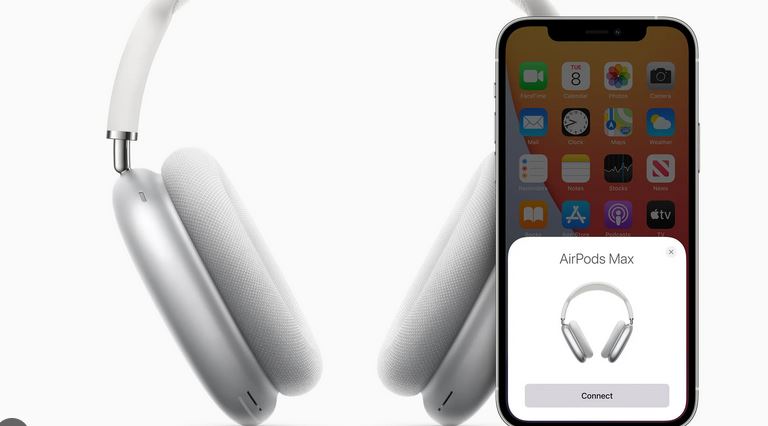
tutoriel connexion airpods max

If the AirPods Max don’t connect, you can go to the Bluetooth section of the settings and select the. Next, press and hold the noise control button for about five seconds. The light should start flashing white. Shortly afterwards, a “Connect” button should appear on the screen. Click on it to complete the connection process.

Partager cet article
Facebook Email Copy Link Imprimer
Laisser une note

Laisser une note Cancel reply

Your email address will not be published. Required fields are marked *

Sélectionnez une note

Notre partenaire

offre nordvpn

Réseaux sociaux

23kLike
38kSuivre
170Suivre
2.8kAbonnement
10.8kSuivre
1.1kSuivre
34Suivre

Vous aimerez aussi ...

How do I make a hidden number call with an iPhone?

28/04/2024

How do I use iMessage on Chromebooks?

28/04/2024

How to activate the “Night Shift” feature on iPhone?

28/04/2024

How to use multiple wireless speakers with an Apple TV

28/04/2024

A ne pas louper !

test dreame x40 ultra complete avis (16)
Le prix de cet aspirateur robot Dreame chute drastiquement sur Amazon
Bons plans
awol VisionMaster Pro 2
Prime Day : Grosse promo sur ces vidéoprojecteurs 4K haut de gamme
Bons plans
Le streaming TV : la nouvelle ère du divertissement à portée de clic avec Mondial TV
Bons plans
  • Annoncer sur CharlesTech
  • Mentions légales
  • Contactez nous
  • À propos
  • Plan de site
© Charles Tech 2017 - 2025 - Toute reproduction (même partielle) interdite sous peine de poursuites.
Re !

Connectez-vous

Username or Email Address
Password

Vous avez perdu votre mot de passe ?